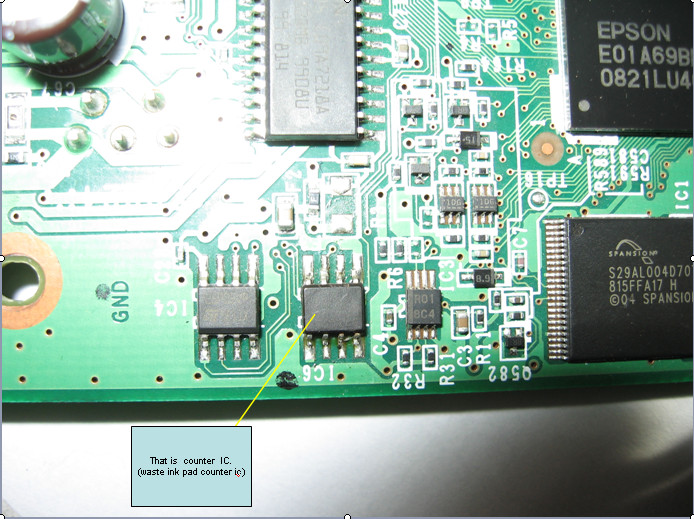
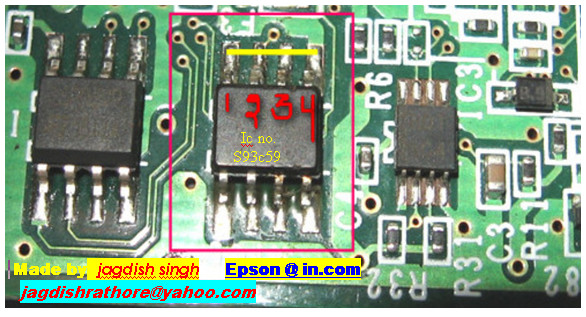
When your Epson L100, l200 or L800 printer gives the message like "Ink Out. Replace Inks" You have to buy expensive Epson ink bottles with Ink Codes on them.

Black ink bottle ID:
But You can now use our FREE Ink Codes and refill Your printers with inks you like. Not need to pay more money for Epson Ink Bottles!

Ink Reset Codes (Reset ID) for Epson L100 and L200 4 colors printers
Black ink bottle ID:
EKA-3TF-A24-GETR
J3K-958-9J4-5DLN
GDU-T62-G5N-3GMJ
7UR-BVW-47F-MBLZ
GPC-XJQ-VT9-799R
6T2-YBZ-9WX-J42A
3BV-YV9-459-S2RC
2YB-CXS-T8D-KXDG
445 - 645 - 6UD - E7VQ
X52 - 4HD - UVR - ZYRC
YVJ - FAW - J92 - QUES
VYM - 8WZ - 5F2 - RMQ3
B3M - QUH - 5ZB - YE8Z
TW7 - 6UE - BN4 - L8MB
63C - 8CD - DDQ - 55DA
A6X - 4HV - DQ9 - X3BZ
38J - 7W3 - 7WF - AL2B
H7R - HJK - FFU - P6EM
VB5 - 3TW - TVE - 9PAP
J3K-958-9J4-5DLN
GDU-T62-G5N-3GMJ
7UR-BVW-47F-MBLZ
GPC-XJQ-VT9-799R
6T2-YBZ-9WX-J42A
3BV-YV9-459-S2RC
2YB-CXS-T8D-KXDG
445 - 645 - 6UD - E7VQ
X52 - 4HD - UVR - ZYRC
YVJ - FAW - J92 - QUES
VYM - 8WZ - 5F2 - RMQ3
B3M - QUH - 5ZB - YE8Z
TW7 - 6UE - BN4 - L8MB
63C - 8CD - DDQ - 55DA
A6X - 4HV - DQ9 - X3BZ
38J - 7W3 - 7WF - AL2B
H7R - HJK - FFU - P6EM
VB5 - 3TW - TVE - 9PAP
Cyan ink bottle ID:
XXX-996-B96-BBUC
DV9-E8U-JW4-K47Z
WQ3-8ZR-M6Z-Z96F
MAY-M8D-8LZ-VUXC
VKP-V8T-87L-PGWB
LHL-K58-D3H-GV25
vbm - L3q - 4wp - v2te
Y2A - VBR - QBZ - XD3Q
H2X - 4UX - 7X9 - 4KCP
B84 - RUA - MM7 - UY85
JSL - 5PU - 5HL - QQBF
CL4 - CQB - HUG - Y53P
A92 - Y6J - YTM - 55VZ
DY5 - 744 - DTS - CR4A
J44 - 5LP - 2QL - WCWP
B94 - MK2 - UXJ - 2BGE
4ND - YSC - M3G - VGNC
DV9-E8U-JW4-K47Z
WQ3-8ZR-M6Z-Z96F
MAY-M8D-8LZ-VUXC
VKP-V8T-87L-PGWB
LHL-K58-D3H-GV25
vbm - L3q - 4wp - v2te
Y2A - VBR - QBZ - XD3Q
H2X - 4UX - 7X9 - 4KCP
B84 - RUA - MM7 - UY85
JSL - 5PU - 5HL - QQBF
CL4 - CQB - HUG - Y53P
A92 - Y6J - YTM - 55VZ
DY5 - 744 - DTS - CR4A
J44 - 5LP - 2QL - WCWP
B94 - MK2 - UXJ - 2BGE
4ND - YSC - M3G - VGNC
Magenta ink bottle ID:
LV5-BJ8-W26-GSJS
SYH-LYR-7RR-L8EF
MWA-MUJ-W6K-YJDY
HXB-ES6-5TD-UKRP
BJ2-HB4-8QP-GKPQ
4XP-YJ7-N7Z-6X63
VKT - 3N8 - K3S - EDQR
LDR - 2EA - 6KL - 4KCP
K5X - AW3 - VDU - X8GN
FEA - 8Q8 - UZM - B7U5
FXL - LFM - XAY - LUR3
9A2 - E8J - BH9 - 8D6Z
F7B - 339 -ED2 - J4UA
X4H - PNM - 2V5 - DGNZ
22L - AML - DVU - 9RK9
72W - J3K - 4BE - L7KG
EG2 - JSH - 6HY - KBX5
SYH-LYR-7RR-L8EF
MWA-MUJ-W6K-YJDY
HXB-ES6-5TD-UKRP
BJ2-HB4-8QP-GKPQ
4XP-YJ7-N7Z-6X63
VKT - 3N8 - K3S - EDQR
LDR - 2EA - 6KL - 4KCP
K5X - AW3 - VDU - X8GN
FEA - 8Q8 - UZM - B7U5
FXL - LFM - XAY - LUR3
9A2 - E8J - BH9 - 8D6Z
F7B - 339 -ED2 - J4UA
X4H - PNM - 2V5 - DGNZ
22L - AML - DVU - 9RK9
72W - J3K - 4BE - L7KG
EG2 - JSH - 6HY - KBX5
Yellow ink bottle ID:
RXU-7VR-XK7-P7JZ
FX2-6XP-PGL-LTFP
K33-RG2-YRN-XACJ
QGM-5Z8-6UC-UWBQ
B5W-AZ8-F82-QADY
G4A-9VQ-A8Q-2EFZ
DN4 - 5BE - S26 - NMY5
ALQ - W9G - 92W - YDMN
PPZ - FTN - 6TL - D8EZ
QDB - L3C - 5NU - TP5G
VPT - 36F - A3E - KW7E
QGD - P7Q - PLX - CNUZ
7XG - B4Q - QFZ - XCJG
HM9 - JVZ - LQ3 -H4BA
5G3 - VR3 - HPU - 6XDZ
77X - 5CP - 527 - H4JZ
ADE - BRE - Z8S - JR6J
FX2-6XP-PGL-LTFP
K33-RG2-YRN-XACJ
QGM-5Z8-6UC-UWBQ
B5W-AZ8-F82-QADY
G4A-9VQ-A8Q-2EFZ
DN4 - 5BE - S26 - NMY5
ALQ - W9G - 92W - YDMN
PPZ - FTN - 6TL - D8EZ
QDB - L3C - 5NU - TP5G
VPT - 36F - A3E - KW7E
QGD - P7Q - PLX - CNUZ
7XG - B4Q - QFZ - XCJG
HM9 - JVZ - LQ3 -H4BA
5G3 - VR3 - HPU - 6XDZ
77X - 5CP - 527 - H4JZ
ADE - BRE - Z8S - JR6J
Ink Reset Codes (Reset ID) for Epson L800 6 color printer
Black ink bottle ID:
QJK-8M3-8SK-WE7N
TQY-9DL-2WA-98EA
L5H-8YL-MGG-2CDJ
QTX-WHE-R6L-DTBM
TUP-AB9-KPS-MZX5
32X-FDB-UUT-26UC
TQY-9DL-2WA-98EA
L5H-8YL-MGG-2CDJ
QTX-WHE-R6L-DTBM
TUP-AB9-KPS-MZX5
32X-FDB-UUT-26UC
Cyan ink bottle ID:
64S-GB8-D68-PEPB
A7R-V-LRA-X583
QWU-ZXZ-RVP-V7HZ
8LL-JEM-CD2-957F
A7R-V-LRA-X583
QWU-ZXZ-RVP-V7HZ
8LL-JEM-CD2-957F
Light Cyan ink bottle ID:
TJT-2EQ-F9H-T97C
327-6WX-BN3-CFHS
SFL-J2G-RH2-857M
327-6WX-BN3-CFHS
SFL-J2G-RH2-857M
Magenta ink bottle ID:
3BJ-VEF-RV7-J8AE
F68-2JE-E6T-BQ6N
RVR-9Z4-CA7-ZUDR
NQ8-TFS-Q34-J4RC
F68-2JE-E6T-BQ6N
RVR-9Z4-CA7-ZUDR
NQ8-TFS-Q34-J4RC
Light Magenta ink bottle ID:
XKK-3TP-UU4-XE85
Z5Z- C5Q-Q6F-APZF
9F8-QEC-RDD-85TF
Z5Z- C5Q-Q6F-APZF
9F8-QEC-RDD-85TF
Yellow ink bottle ID:
UTV-GPF-2H3-BFW5
C9K-88G-JUQ-HGYM
FB7-Q2N-APU-XQ4E
SF8-WBQ-LH7-S5TF
If you dont want to enter reset ID codes manualy each refilling procedure - we recomend you Free Utility to reset the Inks in Epson L100, L200, L800 printers.
This WIC Reset Utility can reset inks absolutely free!
When the printer give "Ink Out" error - just run the WIC Reset utility and reset the Ink Levels in L100, L200, L800 printers to 100% again. It is easy and free. Enjoy!
Free download WIC Reset utility 4 400 kB
It has both Windows and MAC versions. Use it to reset ink level counters free!
C9K-88G-JUQ-HGYM
FB7-Q2N-APU-XQ4E
SF8-WBQ-LH7-S5TF
If you dont want to enter reset ID codes manualy each refilling procedure - we recomend you Free Utility to reset the Inks in Epson L100, L200, L800 printers.
This WIC Reset Utility can reset inks absolutely free!
When the printer give "Ink Out" error - just run the WIC Reset utility and reset the Ink Levels in L100, L200, L800 printers to 100% again. It is easy and free. Enjoy!
Free download WIC Reset utility 4 400 kB
It has both Windows and MAC versions. Use it to reset ink level counters free!
FREE Download - Epson L100, L200, L800 Service Manuals |
|