Official ink cartridges are expensive when compared with the cost of illing them. The price of new cartridges is so high, some consumers resort to buying a new printerwhen they run out. The printer manufactures argue that without expensive cartridges, printers would cost a lot more. That is probably true, but the consumer doesnt have to play that game.
Messy Refills
Ink cartridge ill kits contain everything required to fill an empty cartridge . The no-brand kits have an ink bottle and syringe, while the professional kits have an ink-filled bulb with a needle attached. Almost all kits come with rubber gloves, and for good reason.
Refilling ink cartridges can be messy, but most people become good at illing after a few attempts. The bulbs are the easiest and cleanest method, and they can usually be found next to the official cartridges.
Ink Cartridge Refills
Risky Refills
Using illed ink cartridges voids the warranty of most printers. The latest trick is to use a unique computer chip on the cartridge that tells the printer its genuine. If the same chip is found after a certain number of prints, the printer will permanently record this as proof that illed cartridges were used.
Printer manufacturers argue that illed ink cartridges can damage a printer. While the occasional no-brand kit will have watered-down ink that can ruin printers, many professional ills come with a warranty against printer damage. Besides, new printers are released every six months, cheaper and better than the last model. The main concern for consumers should be how well their prints look when using ink ills.
Print Quality
Black and white prints should not look different with ink ills, but color prints may have different colors, or the colors will be less vibrant. However, even ill kits cant compete with department store photo labs for price quality and convenience.
As long as you dont expect top quality photos, and dont mind a bit of mess, illing inkjetcartridges can save you a small fortune. But the most satisfying part is beating the printer manufacturers at their own game.
Showing posts with label ink. Show all posts
Showing posts with label ink. Show all posts
Sunday, February 16, 2014

Friday, November 22, 2013
Ink Level Reset for HP Cartidges HP21 and HP22 Tutorial Printers
Cartridges HP21 and HP22 can be found on the following printer, Hp deskjet 3920, D2400 series, D2466, D1300 series, PSC 1402, 1410 and many Hp printer again. Problem on the HP printer, if indicator ink level cartridges is empty, ...
Thursday, November 21, 2013
Driver Download for Epson L350 INK TANK SYSTEM PRINTER

Epson L350
Compatibility and System Requirements :
- Windows 8
- Windows 7
- Windows 7 (x64)
- Windows Vista
- Windows Vista (x64)
- Windows XP
Epson L350 Driver
Source direct Download link
Product name L350 Series
Language English, French, Dutch, Swedish, Czech, Danish, German, Spanish, Italian, Hungarian, Polish, Portuguese, Finnish, Turkish, Greek, Norwegian, Bulgarian, Estonian, Latvian, Lithuanian, Romanian, Russian, Arabic, Catalan, Slovak, Chinese, Kazakh, Korean, Thai, Ukrainian, Chinese (Simplified)
OS Windows XP, Windows Vista, Windows 7, Windows 8
Version Ver. 1.51(10-2012)
File name L350_x86_151UsHomeExportAsiaML_MP2.exe
File size 20.18 MB
PRINTER DRIVER DOWNLOAD HERE
Product name L210 Series, L350 Series
Language English, French, Dutch, Swedish, Czech, Danish, German, Spanish, Italian, Hungarian, Polish, Portuguese, Finnish, Turkish, Greek, Norwegian, Bulgarian, Estonian, Latvian, Lithuanian, Romanian, Russian, Arabic, Catalan, Slovak, Chinese, Korean, Ukrainian, Chinese (Simplified), Portuguese (Brazil)
OS Windows XP, Windows x64, Windows Vista, Windows Vista x64, Windows 7, Windows 7 x64, Windows 8, Windows 8 x64
Version Ver. 3.7.9.1(12-2012)
File name L210_WW_WIN_3791_41.exe
File size 19.81 MB
SCANNER DRIVER DOWNLOAD HERE
Source direct Download link
Product name L350 Series
Language English, French, Dutch, Swedish, Czech, Danish, German, Spanish, Italian, Hungarian, Polish, Portuguese, Finnish, Turkish, Greek, Norwegian, Bulgarian, Estonian, Latvian, Lithuanian, Romanian, Russian, Arabic, Catalan, Slovak, Chinese, Kazakh, Korean, Thai, Ukrainian, Chinese (Simplified)
OS Windows XP, Windows Vista, Windows 7, Windows 8
Version Ver. 1.51(10-2012)
File name L350_x86_151UsHomeExportAsiaML_MP2.exe
File size 20.18 MB
PRINTER DRIVER DOWNLOAD HERE
Product name L210 Series, L350 Series
Language English, French, Dutch, Swedish, Czech, Danish, German, Spanish, Italian, Hungarian, Polish, Portuguese, Finnish, Turkish, Greek, Norwegian, Bulgarian, Estonian, Latvian, Lithuanian, Romanian, Russian, Arabic, Catalan, Slovak, Chinese, Korean, Ukrainian, Chinese (Simplified), Portuguese (Brazil)
OS Windows XP, Windows x64, Windows Vista, Windows Vista x64, Windows 7, Windows 7 x64, Windows 8, Windows 8 x64
Version Ver. 3.7.9.1(12-2012)
File name L210_WW_WIN_3791_41.exe
File size 19.81 MB
SCANNER DRIVER DOWNLOAD HERE
Wednesday, November 20, 2013
Solution Ink Out Error for Epson Printer
One of the problem on the Epson printer when ink level indicator is empty will show Ink Out error message when printing. This problem is usually marked with the ink led/ resume led is light (not blinking) and when view ink level indicator the printer status on computer it show the cartridge indicator is empty and marked with X. To solve this problem, on the canon printer you can press button combination to reset the ink level but on the Epson printer you need chips resetter or on old version Epson printer you can use software resetter like SSC server or adjustment program.
In the Epson printer this problem usually appear if you use original Epson cartridges (on new Epson printer model, C79 above) and this problem cannot be reset using resetter but on old version Epson printer such as Epson C45, C67, C58, etc you can reset the cartridge using cartridge resetter.

To solve “Ink out error” problem for Epson Printer you can use one of the following methods:
In the Epson printer this problem usually appear if you use original Epson cartridges (on new Epson printer model, C79 above) and this problem cannot be reset using resetter but on old version Epson printer such as Epson C45, C67, C58, etc you can reset the cartridge using cartridge resetter.
To solve “Ink out error” problem for Epson Printer you can use one of the following methods:
- Change the Epson Cartirdge with compatible Epson cartridge or replace the Epson chips with auto-reset chips.
- Reset Chips of cartridges using chips resetter (Chips resetter available for old Epson version only). You can buy chip resetter on computer or printer shops near you home. If you use old epson printer model you can reset the chips using SSC software but this software not support for new Epson printer models.
- Replace old cartridge with new cartridges, this is last solution if the both methods above not solve the problem. Before replace with new cartridge, check beforehand whether the problem is really caused by a cartridge or not because I found some ink out error is not caused by chips but cause by cartridge not installed correctly.
Tuesday, November 19, 2013
FREE Ink Reset Codes for Epson L100 L200 L800 printers
When your Epson L100, l200 or L800 printer gives the message like "Ink Out. Replace Inks" You have to buy expensive Epson ink bottles with Ink Codes on them.

Black ink bottle ID:
But You can now use our FREE Ink Codes and refill Your printers with inks you like. Not need to pay more money for Epson Ink Bottles!

Ink Reset Codes (Reset ID) for Epson L100 and L200 4 colors printers
Black ink bottle ID:
EKA-3TF-A24-GETR
J3K-958-9J4-5DLN
GDU-T62-G5N-3GMJ
7UR-BVW-47F-MBLZ
GPC-XJQ-VT9-799R
6T2-YBZ-9WX-J42A
3BV-YV9-459-S2RC
2YB-CXS-T8D-KXDG
445 - 645 - 6UD - E7VQ
X52 - 4HD - UVR - ZYRC
YVJ - FAW - J92 - QUES
VYM - 8WZ - 5F2 - RMQ3
B3M - QUH - 5ZB - YE8Z
TW7 - 6UE - BN4 - L8MB
63C - 8CD - DDQ - 55DA
A6X - 4HV - DQ9 - X3BZ
38J - 7W3 - 7WF - AL2B
H7R - HJK - FFU - P6EM
VB5 - 3TW - TVE - 9PAP
J3K-958-9J4-5DLN
GDU-T62-G5N-3GMJ
7UR-BVW-47F-MBLZ
GPC-XJQ-VT9-799R
6T2-YBZ-9WX-J42A
3BV-YV9-459-S2RC
2YB-CXS-T8D-KXDG
445 - 645 - 6UD - E7VQ
X52 - 4HD - UVR - ZYRC
YVJ - FAW - J92 - QUES
VYM - 8WZ - 5F2 - RMQ3
B3M - QUH - 5ZB - YE8Z
TW7 - 6UE - BN4 - L8MB
63C - 8CD - DDQ - 55DA
A6X - 4HV - DQ9 - X3BZ
38J - 7W3 - 7WF - AL2B
H7R - HJK - FFU - P6EM
VB5 - 3TW - TVE - 9PAP
Cyan ink bottle ID:
XXX-996-B96-BBUC
DV9-E8U-JW4-K47Z
WQ3-8ZR-M6Z-Z96F
MAY-M8D-8LZ-VUXC
VKP-V8T-87L-PGWB
LHL-K58-D3H-GV25
vbm - L3q - 4wp - v2te
Y2A - VBR - QBZ - XD3Q
H2X - 4UX - 7X9 - 4KCP
B84 - RUA - MM7 - UY85
JSL - 5PU - 5HL - QQBF
CL4 - CQB - HUG - Y53P
A92 - Y6J - YTM - 55VZ
DY5 - 744 - DTS - CR4A
J44 - 5LP - 2QL - WCWP
B94 - MK2 - UXJ - 2BGE
4ND - YSC - M3G - VGNC
DV9-E8U-JW4-K47Z
WQ3-8ZR-M6Z-Z96F
MAY-M8D-8LZ-VUXC
VKP-V8T-87L-PGWB
LHL-K58-D3H-GV25
vbm - L3q - 4wp - v2te
Y2A - VBR - QBZ - XD3Q
H2X - 4UX - 7X9 - 4KCP
B84 - RUA - MM7 - UY85
JSL - 5PU - 5HL - QQBF
CL4 - CQB - HUG - Y53P
A92 - Y6J - YTM - 55VZ
DY5 - 744 - DTS - CR4A
J44 - 5LP - 2QL - WCWP
B94 - MK2 - UXJ - 2BGE
4ND - YSC - M3G - VGNC
Magenta ink bottle ID:
LV5-BJ8-W26-GSJS
SYH-LYR-7RR-L8EF
MWA-MUJ-W6K-YJDY
HXB-ES6-5TD-UKRP
BJ2-HB4-8QP-GKPQ
4XP-YJ7-N7Z-6X63
VKT - 3N8 - K3S - EDQR
LDR - 2EA - 6KL - 4KCP
K5X - AW3 - VDU - X8GN
FEA - 8Q8 - UZM - B7U5
FXL - LFM - XAY - LUR3
9A2 - E8J - BH9 - 8D6Z
F7B - 339 -ED2 - J4UA
X4H - PNM - 2V5 - DGNZ
22L - AML - DVU - 9RK9
72W - J3K - 4BE - L7KG
EG2 - JSH - 6HY - KBX5
SYH-LYR-7RR-L8EF
MWA-MUJ-W6K-YJDY
HXB-ES6-5TD-UKRP
BJ2-HB4-8QP-GKPQ
4XP-YJ7-N7Z-6X63
VKT - 3N8 - K3S - EDQR
LDR - 2EA - 6KL - 4KCP
K5X - AW3 - VDU - X8GN
FEA - 8Q8 - UZM - B7U5
FXL - LFM - XAY - LUR3
9A2 - E8J - BH9 - 8D6Z
F7B - 339 -ED2 - J4UA
X4H - PNM - 2V5 - DGNZ
22L - AML - DVU - 9RK9
72W - J3K - 4BE - L7KG
EG2 - JSH - 6HY - KBX5
Yellow ink bottle ID:
RXU-7VR-XK7-P7JZ
FX2-6XP-PGL-LTFP
K33-RG2-YRN-XACJ
QGM-5Z8-6UC-UWBQ
B5W-AZ8-F82-QADY
G4A-9VQ-A8Q-2EFZ
DN4 - 5BE - S26 - NMY5
ALQ - W9G - 92W - YDMN
PPZ - FTN - 6TL - D8EZ
QDB - L3C - 5NU - TP5G
VPT - 36F - A3E - KW7E
QGD - P7Q - PLX - CNUZ
7XG - B4Q - QFZ - XCJG
HM9 - JVZ - LQ3 -H4BA
5G3 - VR3 - HPU - 6XDZ
77X - 5CP - 527 - H4JZ
ADE - BRE - Z8S - JR6J
FX2-6XP-PGL-LTFP
K33-RG2-YRN-XACJ
QGM-5Z8-6UC-UWBQ
B5W-AZ8-F82-QADY
G4A-9VQ-A8Q-2EFZ
DN4 - 5BE - S26 - NMY5
ALQ - W9G - 92W - YDMN
PPZ - FTN - 6TL - D8EZ
QDB - L3C - 5NU - TP5G
VPT - 36F - A3E - KW7E
QGD - P7Q - PLX - CNUZ
7XG - B4Q - QFZ - XCJG
HM9 - JVZ - LQ3 -H4BA
5G3 - VR3 - HPU - 6XDZ
77X - 5CP - 527 - H4JZ
ADE - BRE - Z8S - JR6J
Ink Reset Codes (Reset ID) for Epson L800 6 color printer
Black ink bottle ID:
QJK-8M3-8SK-WE7N
TQY-9DL-2WA-98EA
L5H-8YL-MGG-2CDJ
QTX-WHE-R6L-DTBM
TUP-AB9-KPS-MZX5
32X-FDB-UUT-26UC
TQY-9DL-2WA-98EA
L5H-8YL-MGG-2CDJ
QTX-WHE-R6L-DTBM
TUP-AB9-KPS-MZX5
32X-FDB-UUT-26UC
Cyan ink bottle ID:
64S-GB8-D68-PEPB
A7R-V-LRA-X583
QWU-ZXZ-RVP-V7HZ
8LL-JEM-CD2-957F
A7R-V-LRA-X583
QWU-ZXZ-RVP-V7HZ
8LL-JEM-CD2-957F
Light Cyan ink bottle ID:
TJT-2EQ-F9H-T97C
327-6WX-BN3-CFHS
SFL-J2G-RH2-857M
327-6WX-BN3-CFHS
SFL-J2G-RH2-857M
Magenta ink bottle ID:
3BJ-VEF-RV7-J8AE
F68-2JE-E6T-BQ6N
RVR-9Z4-CA7-ZUDR
NQ8-TFS-Q34-J4RC
F68-2JE-E6T-BQ6N
RVR-9Z4-CA7-ZUDR
NQ8-TFS-Q34-J4RC
Light Magenta ink bottle ID:
XKK-3TP-UU4-XE85
Z5Z- C5Q-Q6F-APZF
9F8-QEC-RDD-85TF
Z5Z- C5Q-Q6F-APZF
9F8-QEC-RDD-85TF
Yellow ink bottle ID:
UTV-GPF-2H3-BFW5
C9K-88G-JUQ-HGYM
FB7-Q2N-APU-XQ4E
SF8-WBQ-LH7-S5TF
If you dont want to enter reset ID codes manualy each refilling procedure - we recomend you Free Utility to reset the Inks in Epson L100, L200, L800 printers.
This WIC Reset Utility can reset inks absolutely free!
When the printer give "Ink Out" error - just run the WIC Reset utility and reset the Ink Levels in L100, L200, L800 printers to 100% again. It is easy and free. Enjoy!
Free download WIC Reset utility 4 400 kB
It has both Windows and MAC versions. Use it to reset ink level counters free!
C9K-88G-JUQ-HGYM
FB7-Q2N-APU-XQ4E
SF8-WBQ-LH7-S5TF
If you dont want to enter reset ID codes manualy each refilling procedure - we recomend you Free Utility to reset the Inks in Epson L100, L200, L800 printers.
This WIC Reset Utility can reset inks absolutely free!
When the printer give "Ink Out" error - just run the WIC Reset utility and reset the Ink Levels in L100, L200, L800 printers to 100% again. It is easy and free. Enjoy!
Free download WIC Reset utility 4 400 kB
It has both Windows and MAC versions. Use it to reset ink level counters free!
FREE Download - Epson L100, L200, L800 Service Manuals |
|

Monday, November 11, 2013
How to Reset Epson rx650 waste ink pad counter

1. Switch on printer
2. Set the pc date setting to 13 february 2007
3. Run adjprog.exe from the extracted folder
4. Click accept
5. Click particular adjustment mode
6. Go to maintenance then Select waste ink pad counter then click ok
7. Click on "check button till its done then click on initialization button then click on finish button
8. Switch off printer for 5 secs then switch on again
9. After you reset succesfully, you can change the date back to normal
Resetter - Download Here
Sunday, November 10, 2013
Reset for Epson T13 printer waste ink pad counter overflow error

FIX PRINTER ERROR "parts inside printer end service life, waste ink pad counter overflow error"
How to Reset Epson Stylus T13 :
Step 1:Be sure the driver of epson printer T13 must have been installed on your computer.
Step 2:Download Software resetter of Epson T13 first.You can download it here http://www.ziddu.com/download/12673537/T13byOrTHoTaMiNe.rar.html File Size : 398.91 KB
Note:Date of computers do not need to be changed as previously resetter.
Turn off your Antivirus, because reseter T13 detected as virus by antivirus software.
Step 3:Run the downloaded program of Epson T13 with a double click on "AdjProg.exe".
Step 4:Follow the photo direction below(Ten Steps to do)


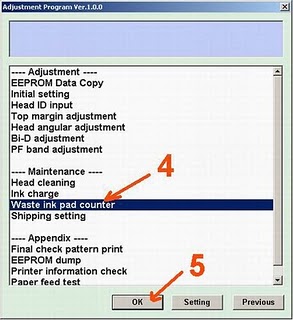

"Check: used to counter check the maximum 7800 points, you can see it in the main pad counter.
If more or close to 7800 points means the printer needs to be reset "
"Initialization: used to reset to zero counter printer "
When finished turn the printer off and then switch on again.
The printer will flame with a full green light.That Means the printer Epson Stylus T13 that have been error is ready for use again.
enjoy.
Friday, October 25, 2013
Reset Canon MP258 Ink absorber inside the printer is almost full Error P07

FIX PRINTER ERROR "parts inside printer end service life, waste ink pad counter overflow error"
If your printer show P07 error it means that your ink absorber inside the printer is almost full. In order to solve this you need to clear or reset the counter protection of your printer. To do this, follow this steps.First make sure that the power cable and usb cable are connected, before you perform the reset procedure. And download the resetter at the bottom of this post.
FIRST STEPS: Entering Service Mode
You have to enter in service mode in order to used the resetter. To do that follow this procedure,
1. Turn off the printer without pulling the power cords.
2. Hold down STOP/RESET button and press Power button.
3. Keep holding down Power button and let STOP/RESET button go.
4. Then Press STOP/RESET button twice then let BOTH buttons go.
5. You will notice that the Alternate Blinking error is gone, this means that the printer is in Service Mode state.
SECOND STEPS: Using the Resetter
1. After you download the resetter, extract it and double click "servicetool.exe"
2. Load some papers in your printer and press the "Main" Button once, wait until the printing is done.
3. Then press "EEPRsaya Clear" button to clear EEPRsaya.
4. Then press EEPRsaya button and the printer will print some text.
5. Then power off the printer(sometimes you have to press twice the power button to turn off) and turn on again. and its done!
Warning: Getting rid of the error message won’t change that you might end up with ink leaking out of the printer if you don’t either replace or clean them.
OR
3.After download is completed.You have to change a file name extension from ".doc" to ".exe"
4.Turn of the printer,wait until it stop working.
5.Press the STOP/RESET button,then press the POWER button and hold more seconds,
6.After that press the STOP/RESET button twice still press hold POWER button.
7.There after leave out from both of buttons to approach SERVICE MODE
8.Double click on the file MP258.EXE
9.It will looks like the picture,after that insert of piece of paper & press the MAIN button once,wait until printing out of paper.
10.Press an EEPRsaya CLEAR button to CLEAR EEPRsaya,after that one more paper and press an EEPRsaya button,then printer will be printed EEPRsaya to
11.When the process was completed,turn it off and turn on again.
4.Turn of the printer,wait until it stop working.
5.Press the STOP/RESET button,then press the POWER button and hold more seconds,
6.After that press the STOP/RESET button twice still press hold POWER button.
7.There after leave out from both of buttons to approach SERVICE MODE
8.Double click on the file MP258.EXE
9.It will looks like the picture,after that insert of piece of paper & press the MAIN button once,wait until printing out of paper.

10.Press an EEPRsaya CLEAR button to CLEAR EEPRsaya,after that one more paper and press an EEPRsaya button,then printer will be printed EEPRsaya to
11.When the process was completed,turn it off and turn on again.
refilling the HP 901 black ink cartridge
Step 1. Turn your printer on and take out the cartridges.
Step 2. Take a piece of tape and cover contact #1, as in the picture below.
Step 3. Put the cartridge back into the printer. It will print out an alignment page.
Step 4. Take the cartridge out and put tape over contact #2, as in the picture below.
Step 5. Remove all the tape and put the cartridge back into the printer. The ink levels should now be reset.
Step 2. Take a piece of tape and cover contact #1, as in the picture below.
Step 3. Put the cartridge back into the printer. It will print out an alignment page.
Step 4. Take the cartridge out and put tape over contact #2, as in the picture below.
Step 5. Remove all the tape and put the cartridge back into the printer. The ink levels should now be reset.
Subscribe to:
Posts (Atom)