Showing posts with label the. Show all posts

Sunday, June 28, 2015

Download Building Big Email Lists Like The Big Dogs


Description


instant download in pdf files

dont be late download today and start fix your stuff
this pdf avaliable in english

Now you can download for Building Big Email Lists Like The Big Dogs!!As you’d expect this is the perfect resource for free eBooks and you’ll find a huge variety on here.

We offers a digital source Best ebook for you, a vast range of titles in digital format Get today Building Big Email Lists Like The Big Dogs just browse the various categories on the left or simply use the search box. The aim of the site is to give quality, fast and required services foring and reading Building Big Email Lists Like The Big Dogs.

Please Download here

Saturday, November 30, 2013

How to Resetting the maintenance count LaserJet 9040mfp 9050mfp

1. Turn the MFP off.
2. Turn the MFP back on and wait for the memory count to begin, when the printer starts counting memory press and hold the 6 button.
3. When the three LEDs are on, release the 6 button. SELECT LANGUAGE appears on the screen.
4. Press and release the 3 button until NEW MAINTENANCE KIT appears on the screen.
5. Press and release the 6 button again.

Sunday, November 24, 2013

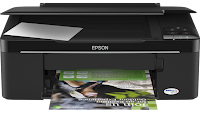
How to Reset the protection counter of Epson TX121 and ME320 Printer


Epson TX121 and ME320 Adjustment Program

FIX PRINTER ERROR "parts inside printer end service life, waste ink pad counter overflow error"
Please follow the steps below to reset the protection counter effectively.

  1. Double click AdjProg.exe.
  2. Click “Accept” button.
  3. Click "Select" button. and select your printer model then click "OK"
  4. Click “Particular adjustment mode” button.
  5. Select on “Waste ink pad counter” and click “OK” button.
  6. Click on “Initialization” button and the program will reset the protection counter.
  7. Turn off the printer as a program instructed then turn on again.
  8. Click “Finish” button. and its done!
Warning: You might end up with ink leaking out of the printer if you dont either replace the waste ink pad or install external waste bin.

Friday, October 25, 2013

Reset Canon MP258 Ink absorber inside the printer is almost full Error P07

FIX PRINTER ERROR "parts inside printer end service life, waste ink pad counter overflow error"
If your printer show P07 error it means that your ink absorber inside the printer is almost full. In order to solve this you need to clear or reset the counter protection of your printer. To do this, follow this steps.

First make sure that the power cable and usb cable are connected, before you perform the reset procedure. And download the resetter at the bottom of this post.

FIRST STEPS:  Entering Service Mode
You have to enter in service mode in order to used the resetter. To do that follow this procedure,

1. Turn off the printer without pulling the power cords.
2. Hold down STOP/RESET button and press Power button.
3. Keep holding down Power button and let STOP/RESET button go.
4. Then Press STOP/RESET button twice then let BOTH buttons go.
5. You will notice that the Alternate Blinking error is gone, this means that the printer is in Service Mode state.

SECOND STEPS: Using the Resetter

1. After you download the resetter, extract it and double click "servicetool.exe"
2. Load some papers in your printer and press the "Main" Button once, wait until the printing is done.
3. Then press "EEPRsaya Clear" button to clear EEPRsaya.
4. Then press EEPRsaya button and the printer will print some text.
5. Then power off the printer(sometimes you have to press twice the power button to turn off) and turn on again. and its done!
Warning: Getting rid of the error message won’t change that you might end up with ink leaking out of the printer if you don’t either replace or clean them.
OR

1.Connected POWER and USB before reset processing

2.Download this tool
3.After download is completed.You have to change a file name extension from ".doc" to ".exe"

4.Turn of the printer,wait until it stop working.

5.Press the STOP/RESET button,then press the POWER button and hold more seconds,

6.After that press the STOP/RESET button twice still press hold POWER button.

7.There after leave out from both of buttons to approach SERVICE MODE

8.Double click on the file MP258.EXE

9.It will looks like the picture,after that insert of piece of paper & press the MAIN button once,wait until printing out of paper.


10.Press an EEPRsaya CLEAR button to CLEAR EEPRsaya,after that one more paper and press an EEPRsaya button,then printer will be printed EEPRsaya to

11.When the process was completed,turn it off and turn on again.

Benefits of the XPS Printer Driver

Benefits of the XPS Driver:

Improved color printing

High-fidelity print output

Faster printing of documents with rich graphics

Improved color printing

The operating system can communicate a broader range of color information from applications to inkjet printers that use more than four ink colors (known as wide-gamut printers).

The advanced color capabilities available in XPS make Windows Vista a great platform for printing photos with more lifelike output.

High-fidelity print output

The XPS print infrastructure enables high-fidelity output by reducing or eliminating image data conversions and color space conversions that typically occur during printing.

The benefit for users is that smooth shadings, fades, and glow effects used in modern documents print just as intended, without loss of image fidelity or color fidelity.

Faster printing of documents with rich graphics

With XPS-enabled enterprise class printers—available now from many printer manufacturers—the time spent waiting to finish printing a rich, color graphics document is dramatically reduced.

Consider a Microsoft PowerPoint presentation that has the same color background repeated across 30 slides.

Before XPS, that enterprise printer would render that same color image 30 times, creating a massive "spool" or print file (and a long wait for everyone else that needed the printer). These massive spool files were also a tax on network bandwidth.

With XPS, the color image is sent to and rendered by the printer once.

refilling the HP 901 black ink cartridge

Step 1. Turn your printer on and take out the cartridges.
Step 2. Take a piece of tape and cover contact #1, as in the picture below.
Step 3. Put the cartridge back into the printer. It will print out an alignment page.
Step 4. Take the cartridge out and put tape over contact #2, as in the picture below.
Step 5. Remove all the tape and put the cartridge back into the printer. The ink levels should now be reset.