1. Hold down the [On Line], [Form Feed], and [Enter] keys while powering ON the printer, until the ON LINE and FORM FEED indicators are both illuminated and the Display Window is blank. (If the Display Window reads 05 SELF TEST at this point, the keys were released too soon. Repeat this step until successful.)
2. Press the [Form Feed] key, then the [Enter] key. The message SERVICE MODE is displayed briefly, then the printer automatically begins a 05 SELF TEST. After several seconds, the ON LINE and FORM FEED lights turn OFF.
(The printer may display 02 WARMING UP if it has not warmed up completely.) After the printer has warmed up and passed the self test, SERVICE MODE is displayed.
3. Press [Menus] once to display SERVICE MENU.
4. Once it says SERVICE MENU press ITEM to scroll through service mode items.
5. To exit the Service Mode press the [On Line] key.
Monday, December 2, 2013

Sunday, December 1, 2013
HP Printer Manual
 This HP Printer Service manual is for HP LaserJet 8000. You can use this HP Printer Manual to assist troubleshooting the printer problems. Troubleshooting chapter tell you how to indentify the causes for printer errors.
The troubleshooting process is a systematic approach that addresses the major problems first and then other problems as you identify the causes for printer malfunctions and errors. The Troubleshooting Process, figure 7-1 on page 378 and figure 7-2 on page 379, illustrates the major steps for troubleshooting the printing system. Each heading depicts a major troubleshooting step. A YES answer to
the questions allows you to proceed to the next major step.
A NO answer indicates that additional testing is needed. Proceed to the referenced location and follow the directions for that area. After completing the additional testing, proceed to the next major step.
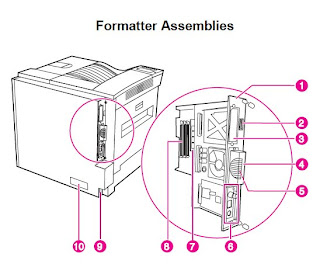
Table 7.1 is Major Steps for Troubleshooting list describes the basic questions for the customer and the corresponding troubleshooting step to help you quickly define the problem(s). Read carefully this HP LaserJet 8000 Printer Service Manual!
Saturday, November 30, 2013
How to Resetting the maintenance count LaserJet 9040mfp 9050mfp
1. Turn the MFP off.
2. Turn the MFP back on and wait for the memory count to begin, when the printer starts counting memory press and hold the 6 button.
3. When the three LEDs are on, release the 6 button. SELECT LANGUAGE appears on the screen.
4. Press and release the 3 button until NEW MAINTENANCE KIT appears on the screen.
5. Press and release the 6 button again.
2. Turn the MFP back on and wait for the memory count to begin, when the printer starts counting memory press and hold the 6 button.
3. When the three LEDs are on, release the 6 button. SELECT LANGUAGE appears on the screen.
4. Press and release the 3 button until NEW MAINTENANCE KIT appears on the screen.
5. Press and release the 6 button again.
Friday, November 29, 2013
Reset EEPROM Printer Canon iP6210D
You can use this software for restore EEPRsaya Printer Canon iP6210D, iP6220D, MP150, MP170, MP450, iP2200, iP1600
Restore EEPRsaya Code for iP6210D, iP6220D, MP150, MP170, MP450
1. While pressing and holding the Power Button, plug the power into a power source. (The Power Led lights. Do not release the Poser button)
2. Push the Stop/Reset button one time while pressing and holding the Power button. Release the power button. The machine enters into the special mode.
Restore EEPRsaya Code for Canon iP2200/iP1600
1. While pressing and holding the Resume/Cancel button, plug the power cord into a power source.(Do not release the Resume/Cancel button)
2. After the power LED stays lit, press the Power button while pressing and holding the Resume/Cancel button.
3. Release the Resume/Cancel button while pressing and holding the Power button, then release the Power button. Both the Power LED and Alarm LED light
Restore EEPRsaya Code for iP6210D, iP6220D, MP150, MP170, MP450
1. While pressing and holding the Power Button, plug the power into a power source. (The Power Led lights. Do not release the Poser button)
2. Push the Stop/Reset button one time while pressing and holding the Power button. Release the power button. The machine enters into the special mode.
Restore EEPRsaya Code for Canon iP2200/iP1600
1. While pressing and holding the Resume/Cancel button, plug the power cord into a power source.(Do not release the Resume/Cancel button)
2. After the power LED stays lit, press the Power button while pressing and holding the Resume/Cancel button.
3. Release the Resume/Cancel button while pressing and holding the Power button, then release the Power button. Both the Power LED and Alarm LED light
Thursday, November 28, 2013
Fix Samsung SCX 4300 error
Use bat files instead of command line interface.
Patch both for 1.13/1.16 versions and corresponding *.bat files you may find via russian link(startcopy.ru):
_http://www.startcopy.ru/repair/files/scx4300_sc1.zip
Original firmwares links:
_http://www.startcopy.ru/repair/files/scx4300fw113.zip (1.13)
_http://www.startcopy.ru/repair/files/scx4300fw116.rar (1.16).
To reset all counters and unblock printer now you have choice:
1. In Tech mode: go Data Setup > Clear counters. In this menu you will find "Clear All CNT "
instead of "Total Page CNT". Choose "Clear All CNT" then press [OK].
2. in User mode: go 10 .Maintenance > Clear Setting > All Setting [OK]
Patch both for 1.13/1.16 versions and corresponding *.bat files you may find via russian link(startcopy.ru):
_http://www.startcopy.ru/repair/files/scx4300_sc1.zip
Original firmwares links:
_http://www.startcopy.ru/repair/files/scx4300fw113.zip (1.13)
_http://www.startcopy.ru/repair/files/scx4300fw116.rar (1.16).
To reset all counters and unblock printer now you have choice:
1. In Tech mode: go Data Setup > Clear counters. In this menu you will find "Clear All CNT "
instead of "Total Page CNT". Choose "Clear All CNT" then press [OK].
2. in User mode: go 10 .Maintenance > Clear Setting > All Setting [OK]
Wednesday, November 27, 2013
HP 2200 NVRAM Reset
NVRAM Reset:
1. Turn the printer power off.
2. Press and hold GO.
3. Turn the printer power back on and continue to hold GO until the Attention, Ready, and Go lights turn on.
4. Release GO.
5. The device lights will begin cycling from font to rear. The NVRAM initialization will run until completion and the device will go to the ready state.
1. Turn the printer power off.
2. Press and hold GO.
3. Turn the printer power back on and continue to hold GO until the Attention, Ready, and Go lights turn on.
4. Release GO.
5. The device lights will begin cycling from font to rear. The NVRAM initialization will run until completion and the device will go to the ready state.
Tuesday, November 26, 2013
Resetter Epson T and TX series Contain Trojan horse
Loader.exe on Resetter Epson T and TX series Contain Trojan horse…??. Don’t worry if you are using or will use adjustment program Epson T and TX series. The possibility of this problem is caused the error code writing when OrTHoTaMiNe cracked this program. I know this problem when backing up data and program on my computer to DVD.
On my Computer I use AVG 9 free version with the latest update (February 18, 2010). Other antivirus software might not detect a Trojan horse in the adjustment program.
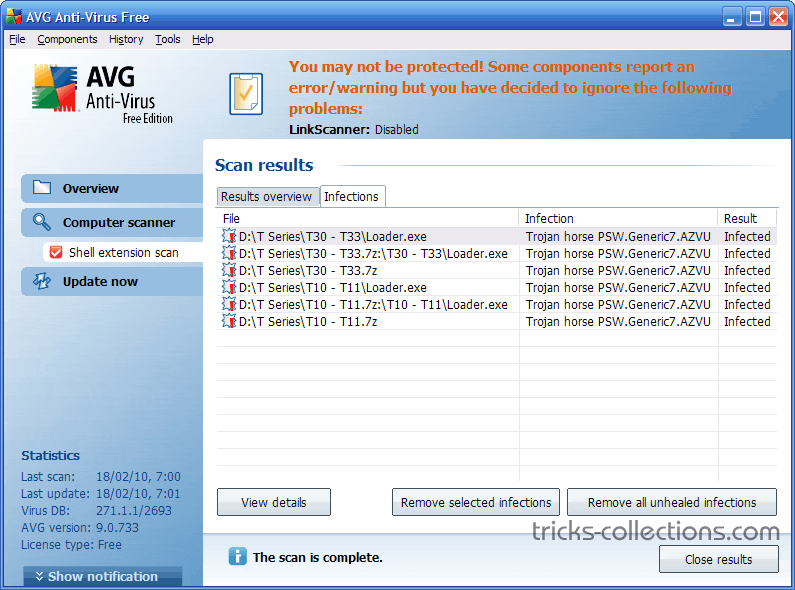
Here the screenshot scan results of AVG 9 installed on my Computer. This Antivirus detects “Trojan Horse PSW Generic 7.AZVU” on Loader.exe.

On my Computer I use AVG 9 free version with the latest update (February 18, 2010). Other antivirus software might not detect a Trojan horse in the adjustment program.
Here the screenshot scan results of AVG 9 installed on my Computer. This Antivirus detects “Trojan Horse PSW Generic 7.AZVU” on Loader.exe.
Subscribe to:
Posts (Atom)